Hosting Control Panels Explained (hPanel, cPanel & More)
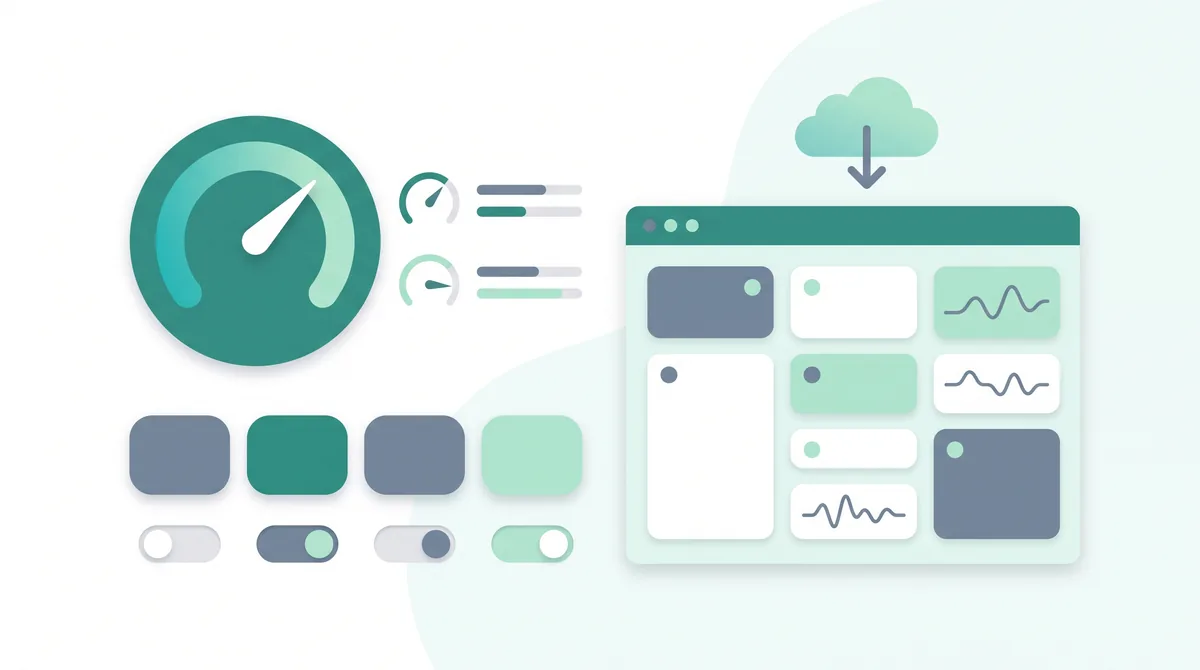
A hosting control panel is a web-based dashboard that lets you manage your hosting through buttons and menus instead of typing commands. From one screen you can set up email, upload files, create databases, install WordPress, edit DNS records and turn on SSL. hPanel and cPanel are two common examples.
Key takeaways
- A control panel is the graphical dashboard (GUI) you log into to run your hosting without using the command line.
- It makes hosting usable for non-technical people, which is why nearly all beginner-friendly plans include one.
- hPanel and cPanel do the same core jobs; the difference is mostly layout and how modern each one feels.
- Common panels include hPanel, cPanel, Plesk, DirectAdmin, and open-source options like CyberPanel and Webmin.
- On a managed VPS a panel is often included; on an unmanaged VPS you can install one yourself.
What is a hosting control panel?
A hosting control panel is a website you log into to run everything about your hosting account. It gives you a graphical user interface (GUI) — a screen with menus, icons and buttons — so you can point and click instead of typing text commands into a black terminal window.
Think of it as the dashboard of a car. Under the hood, a web server is a complex machine made of software, files and settings. You could open that hood and adjust each part by hand, but most people don't want to. The control panel puts the important controls in front of you: a button to add an email address, a slider for a setting, a list of your files. You get the result without needing to know what happens underneath.
Without a control panel, managing a server usually means the command line — typing precise instructions like sudo systemctl restart nginx and hoping you spelled everything correctly. That works well for experienced administrators, but it is slow and intimidating for everyone else. A control panel turns those same actions into a few clicks.
When you sign up for shared hosting, you are usually given a login for one of these panels. You open it in your browser, enter your details, and land on a home screen full of tools grouped into sections such as Email, Files, Databases and Domains. Every task you need to run a normal website lives somewhere in that dashboard.
This guide is part of our Hosting Help Center. If you are brand new to hosting, it pairs well with the other beginner guides linked throughout.
Why does a control panel matter?
A control panel matters because it is the difference between hosting that anyone can use and hosting that only a trained administrator can touch. For a non-technical site owner, it removes almost every hard part of running a website.
Here is what that looks like in practice. Say you want a professional email address at your own domain, like you@yourbusiness.com. On a raw server, that means installing and configuring mail software by hand — a task that can take hours and go wrong in ways that are hard to spot. In a control panel, you click Email Accounts, type the name you want, set a password, and you are done in under a minute.
That same pattern repeats across every task. Installing WordPress, backing up your files, adding a security certificate, creating a database — jobs that once needed real technical skill become short, guided actions. The panel handles the complicated steps in the background and shows you a simple form instead.
This is why nearly all beginner-friendly hosting includes a control panel by default. Hosts know that most of their customers are business owners, bloggers, freelancers and hobbyists — not server engineers. A good panel is what lets those customers succeed without hiring help. When people say a host is "easy to use," they are very often describing the quality of its control panel.
There is a second, quieter benefit: fewer costly mistakes. The command line will do exactly what you tell it, including deleting the wrong thing without asking. A well-designed panel adds guardrails — confirmation prompts, clear labels, and safe defaults — that make it much harder to break your site by accident.
The main control panels compared
There is no single control panel that every host uses. Instead, a handful of panels are common across the industry, and the one you get depends on which host you pick. Below are the ones you are most likely to meet, and who each tends to suit. The goal here is to explain the differences plainly, not to crown a winner — the right panel is simply the one your host provides and that you find comfortable to use.
| Control panel | Who it's for | Ease of use | Typical hosting type | Notes |
|---|---|---|---|---|
| hPanel | Beginners and non-technical site owners | Very approachable, modern layout | Shared and managed hosting | Hostinger's own custom panel, built to be simple and guided. |
| cPanel | General users; anyone used to the standard | Feature-rich; more icons to learn | Shared, reseller and VPS hosting | The long-standing industry standard, usually paired with WHM for server-level settings. |
| Plesk | People on Windows or Linux servers | Clean and organised | VPS and dedicated hosting | Cross-platform — one of the few panels that runs on both Windows and Linux. |
| DirectAdmin | Users who want something simple and fast | Lightweight, fewer menus | Shared and VPS hosting | Uses fewer server resources, so it stays quick on smaller plans. |
| CyberPanel | Hands-on users comfortable installing software | Moderate; some setup involved | VPS and self-managed servers | Free and open-source; built around the LiteSpeed web server. |
| Webmin | Technical users managing a whole server | Powerful but more advanced | VPS and dedicated servers | Free and open-source; exposes deep system settings, not just website tools. |
A few patterns are worth noticing. hPanel, cPanel, Plesk and DirectAdmin are the panels you are most likely to see bundled with a paid plan — you don't install them, they are simply there when you log in. CyberPanel and Webmin are open-source, which means they are free to install yourself but expect a little more comfort with servers. None of these is "correct" in a universal sense; they are just different doors into the same house.
What can you do in a control panel?
Almost everything you need to run a website lives inside the control panel. The exact icons and names shift from panel to panel, but the core tools are the same everywhere. Here is what you will use most.
Create email accounts. You can make professional email addresses at your own domain, set their passwords, and control how much storage each one gets. If email is your main reason for wanting a domain, start with our guide to setting up a custom domain email.
Manage files with a File Manager and FTP. The File Manager is a built-in tool for browsing, uploading, editing and deleting the files that make up your site — all in your browser. FTP (File Transfer Protocol) does the same job through a separate program on your computer, which is handy for moving large numbers of files at once.
Manage databases with phpMyAdmin. A database is where a site like WordPress stores its content, users and settings. phpMyAdmin is the tool most panels include for viewing and editing that database through a visual interface, so you rarely need to touch raw database commands.
Install apps in one click. Most panels include an app installer that sets up software like WordPress for you in a minute or two, with no manual file uploads. Our walkthrough on how to install WordPress shows exactly how this works.
Manage DNS records. DNS (Domain Name System) is the address book of the internet — it points your domain name to the right server. The panel lets you add and edit DNS records to connect your domain, verify email, and more. If that sounds unfamiliar, read what DNS is first.
Set up SSL. An SSL certificate is what turns your site into a secure https address with the padlock icon. Many panels can issue and install a free certificate for you in a couple of clicks — see how to get an SSL certificate.
Change PHP settings. PHP is the programming language WordPress and many other apps run on. In the panel you can switch PHP versions and adjust limits like upload size or memory. Our PHP settings guide explains which values matter and why.
Run backups. A backup is a saved copy of your site you can restore if something goes wrong. Most panels can create backups on demand or on a schedule. Learn how to do this properly in our website backups guide.
Once you know these eight areas — email, files, databases, app installs, DNS, SSL, PHP and backups — you can handle the vast majority of day-to-day hosting tasks from a single screen.
hPanel vs cPanel: what's the difference?
This is the question new users ask most, usually because they see both names while comparing hosts. The honest answer is that hPanel and cPanel do the same core jobs. Both let you manage email, files, databases, domains, SSL, PHP and backups. If you can do a task in one, you can do it in the other — the buttons are just in different places.
cPanel is the older, long-standing standard. It has been around for decades, so a huge number of hosts use it and countless tutorials assume you have it. Its home screen packs a lot of icons onto the page, grouped into sections. That density is powerful once you know your way around, but it can feel busy the first time you log in.
hPanel is a modern, simplified custom panel — meaning the host built it themselves rather than licensing an off-the-shelf one. It tends to show fewer options at once, uses plainer language, and guides you through common tasks step by step. For someone who has never managed hosting before, that gentler layout can lower the learning curve.
So which should you care about? In truth, not much. What actually matters is whether the panel in front of you is clear, reliable, and able to do what you need. A tidy custom panel and a well-organised cPanel account will both serve you well. Don't choose a host on the panel name alone — look at the whole plan, and treat the panel as one part of the experience rather than the deciding factor.
Do you need a control panel on a VPS?
A VPS (Virtual Private Server) is a hosting type that gives you a private slice of a server with far more control than shared hosting. Whether you get a control panel with it depends on one word: managed or unmanaged. If you are new to the idea, start with our explainer on what VPS hosting is.
On a managed VPS, the host takes care of the server for you and a control panel is often included. You log in and manage your sites through a familiar dashboard, much like you would on shared hosting — you just have more resources and power behind it. This is the friendlier path if you want VPS performance without becoming a system administrator.
On an unmanaged VPS, you get a bare server and nothing else. There is no panel by default; you manage the machine through the command line. If you want a graphical dashboard, you install one yourself — this is where the open-source options like CyberPanel and Webmin come in, alongside licensed panels such as cPanel or Plesk. Installing a panel gives you the same point-and-click convenience, but the setup and upkeep are on you.
So do you need one? Not technically — plenty of developers run unmanaged servers with no panel at all. But for most people, a control panel on a VPS is well worth it. It saves time, reduces mistakes, and means you don't have to memorise commands to do routine work. Unless you specifically want the hands-on, command-line experience, having a panel makes a VPS far more comfortable to live with.
Common mistakes to avoid
Most control-panel trouble comes from a few simple habits. Watch for these and you will get far more out of your dashboard.
Assuming every host uses cPanel. Because cPanel has been the standard for so long, some guides talk as if it is the only panel that exists. It isn't. If your host gives you hPanel, Plesk or something else, cPanel-specific instructions won't match what you see — but the same task still exists, usually under a similarly named menu. Look for the feature, not the exact screenshot.
Not exploring the built-in tools. Many people pay for extras — backups, security certificates, staging sites — that their panel already includes for free. Before you buy an add-on or install a plugin, check whether the panel can already do the job. The Backups, SSL and one-click installer sections are the ones most often overlooked.
Editing settings you don't understand. A control panel exposes powerful controls, including some that can take a site offline if changed carelessly — DNS records, PHP limits, redirects and file permissions among them. Change one thing at a time, and only when you know what it does.
Frequently asked questions
What is a hosting control panel?
A hosting control panel is a web-based dashboard that lets you manage your hosting through a visual interface instead of the command line. From it you can create email accounts, upload files, set up databases, install apps like WordPress, edit DNS records, turn on SSL and run backups — all by clicking rather than typing commands.
What's the difference between hPanel and cPanel?
Both do the same core jobs — email, files, databases, domains, SSL and backups. cPanel is the older, long-standing industry standard used by many hosts and paired with WHM for server settings. hPanel is a modern, simplified custom panel with a cleaner, more guided layout. The practical difference is mostly how each one looks and feels, not what it can do.
Do all web hosts use cPanel?
No. cPanel is common, but it is not universal. Many hosts use custom panels like hPanel, and others use Plesk, DirectAdmin, or open-source options such as CyberPanel and Webmin. Because the panel varies by host, cPanel-specific tutorials won't always match your screen — but the underlying task almost always exists under a similar menu.
What can I do in a control panel?
You can handle nearly all day-to-day hosting tasks: create domain email accounts, manage files with a File Manager or FTP, work with databases through phpMyAdmin, install WordPress in one click, add and edit DNS records, set up an SSL certificate, change PHP versions and limits, and create backups. It is the single place where you run your website.
Do I need a control panel on a VPS?
Not technically, but most people benefit from one. A managed VPS usually includes a panel, so you get a familiar dashboard out of the box. An unmanaged VPS has no panel by default — you manage it by command line, or install a panel yourself for a graphical interface. Unless you want the hands-on command-line experience, a panel makes a VPS much easier to use.
Is a control panel free?
It depends. Custom panels like hPanel and open-source ones like CyberPanel and Webmin are usually free to use or included with your plan. Licensed panels such as cPanel and Plesk carry a fee, though on shared hosting that cost is normally built into the price you pay — you won't be billed separately.
Can I use a control panel without technical skills?
Yes — that is the whole point of one. Control panels are designed so non-technical people can manage hosting through simple forms and buttons. Beginner-friendly panels add clear labels and confirmation prompts to reduce mistakes. Start with the common tasks like email and backups, take your time, and you will not need to touch the command line.
Summary
A hosting control panel is the dashboard that makes hosting usable for real people. Instead of learning server commands, you point and click to set up email, files, databases, DNS, SSL, PHP and backups. hPanel, cPanel, Plesk, DirectAdmin, CyberPanel and Webmin are all doors into the same set of jobs — the right one is simply the one your host provides and that feels clear to you. On a VPS, a managed plan usually includes a panel, while an unmanaged plan lets you install one yourself.
Now that you know what the dashboard does, the natural next step is to put it to work. A great place to start is installing your first site — follow our step-by-step guide on how to install WordPress using your panel's one-click installer.
If you're non-technical and the panel itself is what worries you: a clean, beginner-friendly control panel makes managing hosting far less intimidating — you spend your time on your website, not on decoding menus. Hostinger's hPanel is one example of an approachable, guided panel built with newcomers in mind, so it's worth a look if a simple dashboard is high on your list. You can compare its plans to see whether it suits your situation. If valid at the time of purchase, new users may also be able to apply a coupon such as SPECIAL15 or SPECIAL10, subject to Hostinger's terms.
Affiliate disclosure: if you sign up through this link we may earn a commission, at no extra cost to you. How this works.
When hPanel isn't the right fit. Hostinger uses its own hPanel rather than cPanel. If you specifically need cPanel — because an agency workflow depends on it, because you are restoring a cPanel-format backup, or because a developer already knows it — hPanel is not a drop-in replacement, and a cPanel host will save you real friction. If you would rather run no commercial panel at all, open-source options such as CyberPanel or Webmin, or a plain VPS and the command line, give you full control. Choose the panel you will be comfortable opening every week.
Keep reading
Want to go deeper on files and rewrite rules? See managing your site files with the File Manager, FTP and .htaccess.
References
- cPanel & WHM official documentation — product overview and feature reference.
- Plesk official documentation — supported platforms and administrator guides.
- DirectAdmin official documentation — features and system requirements.
- CyberPanel and Webmin project documentation — open-source panel installation and features.
- Hostinger Help Center — hPanel tutorials and feature guides.