SSL Certificates & HTTPS: The Complete Guide
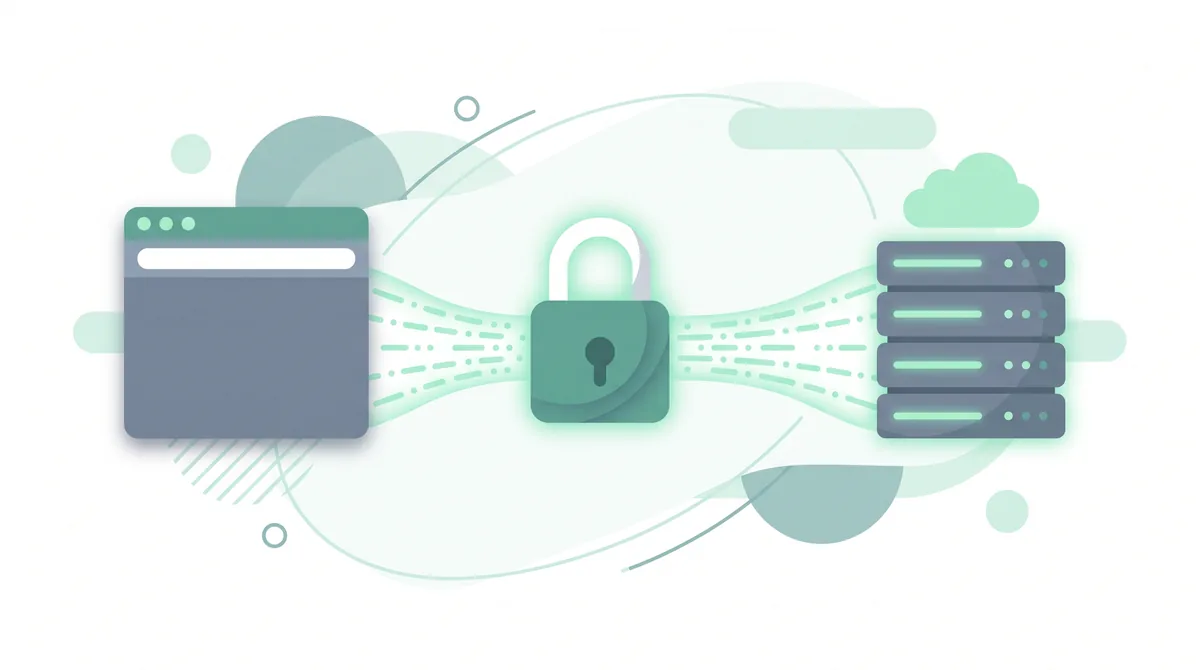
An SSL certificate is a small data file that turns on encryption for your website, so information passing between a visitor's browser and your server can't be read by anyone in between. It changes your address from HTTP to secure HTTPS, shows the padlock icon, and removes the browser's "Not secure" warning.
Key takeaways
- An SSL certificate encrypts the connection between your visitors and your site, protecting logins, form entries, and payments in transit.
- "SSL" is the everyday name for the technology; modern sites actually use its successor, TLS, though nearly everyone still says "SSL."
- Once installed, your site loads over HTTPS and shows a padlock; without it, browsers label the page "Not secure."
- A free certificate is enough for most websites. Larger businesses may choose a paid certificate that verifies their identity.
- Most modern hosts include a free, auto-renewing SSL certificate, so you often don't need to buy or configure anything by hand.
What is an SSL certificate?
An SSL certificate (SSL stands for Secure Sockets Layer) is a security technology that encrypts the connection between a visitor's web browser and the server that hosts your website. Encryption means scrambling data into a code that only the right computer can unscramble. So when someone types a password, fills in a contact form, or enters card details on your site, that information travels as unreadable code instead of plain text. If anyone tries to intercept it along the way, all they see is scrambled characters.
Here's a detail that confuses a lot of people. The name "SSL" is a bit out of date. The original SSL protocol was retired years ago and replaced by a newer, safer one called TLS (Transport Layer Security). Almost every "SSL certificate" you'll buy or receive today actually uses TLS behind the scenes. The industry simply kept saying "SSL" because everyone already knew the term. So when you read "SSL," "SSL/TLS," or "TLS certificate," treat them as the same thing for practical purposes.
A useful way to picture it: think of your website's connection as a delivery van. Without a certificate, the van has clear glass sides, and anyone on the road can see what's inside. With an SSL/TLS certificate, the van becomes an armored, sealed truck. The cargo still travels the same roads, but nobody along the route can see or tamper with what's inside. That protected delivery is what the padlock in the address bar represents.
A certificate actually does two jobs at once. The first is encryption, which we've described: it keeps the data private. The second is authentication, which means proving the site really is the one it claims to be. When a browser accepts a certificate, it has confirmed that the certificate was issued for that exact domain by a trusted authority. Together, those two jobs stop two kinds of attack: someone quietly reading your visitors' data, and someone impersonating your site to trick people into handing over information.
HTTP vs HTTPS: what's the difference?
HTTP (HyperText Transfer Protocol) is the standard language browsers and servers use to send web pages back and forth. It works, but on its own it sends everything as plain, readable text. HTTPS is the same protocol with one important addition: the "S" stands for Secure, and it means the connection is wrapped in SSL/TLS encryption. In short, HTTPS is simply HTTP with an SSL/TLS certificate doing the protecting.
You can spot the difference right in the address bar. A secure site begins with https:// and usually shows a small padlock icon next to the address. An unprotected site begins with http://, and modern browsers such as Chrome, Firefox, Safari, and Edge now flag it with a clear "Not secure" label. That warning appears on every page of an HTTP site, including your home page, which can make first-time visitors hesitate before they trust you.
Why does your website need SSL?
Even a simple blog or brochure site benefits from a certificate today. There are four clear reasons to have one.
1. Security. This is the core job. Encryption stops attackers from reading or changing data as it moves between your visitor and your server. That matters most for logins, contact forms, and anything involving personal details. On public Wi-Fi, such as a coffee shop or airport, an unprotected connection is especially easy to snoop on.
2. Visitor trust. The padlock and the https:// address are signals people now expect. When a visitor sees a "Not secure" warning instead, many will simply leave, even if your content is perfectly safe. A certificate removes that friction and helps people feel comfortable staying and buying.
3. Search ranking (SEO). Google has confirmed that HTTPS is a ranking signal. It is a lightweight one, so a certificate alone won't rocket you up the results, but between two otherwise equal pages, the secure one has an edge. Being secure is now treated as a baseline expectation rather than a bonus. If you want the bigger picture, see our website security guide.
4. Avoiding the "Not secure" warning. As covered above, browsers actively label HTTP pages. For online stores there's an extra point: if you collect payments, a certificate is usually required, both by browsers and by the payment tools and card rules you'll rely on.
It's worth clearing up a myth here: a certificate is not just for shops or sites that take card details. Any form that collects an email address, a name, or a message is worth protecting, and every visitor who reaches a "Not secure" page forms an impression of your site in that moment. Because a certificate is usually free and takes minutes to switch on, there's little reason to treat it as optional, whatever kind of site you run.
How does SSL actually work?
You don't need to be technical to grasp the basics. Three ideas do most of the work.
First, a Certificate Authority (CA) is a trusted organization that issues certificates. Browsers keep a built-in list of CAs they trust, such as Let's Encrypt or DigiCert. When a CA issues a certificate for your domain, it is essentially vouching that your site is what it claims to be, which is why browsers accept it without a warning.
Second, SSL/TLS uses a pair of digital keys. A public key is like an open padlock you hand out freely; anyone can use it to lock (encrypt) a message. A private key is the matching key that stays secret on your server and is the only thing that can unlock (decrypt) those messages. Because the two are mathematically linked, data locked with the public key can only be opened with the private key.
Third, when a browser first connects, the two sides run a quick TLS handshake. This is a brief, behind-the-scenes conversation where the browser checks the site's certificate, confirms it was issued by a trusted CA and hasn't expired, and then both sides agree on a shared secret code for the session. From that point on, everything they send each other is encrypted with that shared code. The whole handshake takes a fraction of a second, and your visitor never sees it happen.
Putting it together in order: a visitor's browser asks to connect, your server sends its certificate, the browser checks that certificate against its list of trusted CAs, and if everything matches the two sides use the public and private keys to agree on a private session code. Only then does the real page data start flowing, now safely encrypted. If any check fails, for example the certificate has expired or doesn't match the domain, the browser stops and shows a warning instead of loading the page. That is the safety net working exactly as intended.
Types of SSL certificates
Certificates differ in two ways: how much they verify about you (validation level), and how many web addresses they cover (coverage). The table below sums it up.
| Type | Grouped by | What it means | Best for |
|---|---|---|---|
| Domain Validation (DV) | Validation | The CA only checks that you control the domain. Issued in minutes; no company details verified. | Blogs, portfolios, small sites, and most websites in general. |
| Organization Validation (OV) | Validation | The CA also confirms your organization exists. Takes longer and shows verified company details in the certificate. | Businesses that want a verified identity behind their site. |
| Extended Validation (EV) | Validation | The strictest checks on your legal identity before the certificate is issued. | Banks, large retailers, and organizations handling sensitive data. |
| Single-domain | Coverage | Secures one exact domain, for example example.com. | A site that lives on a single address. |
| Wildcard | Coverage | Secures one domain plus all its subdomains, such as shop.example.com and blog.example.com. | Sites with several subdomains under one name. |
| Multi-domain (SAN) | Coverage | Secures several separate domains with one certificate. | Managing multiple different websites together. |
A subdomain is a section that sits in front of your main domain, like the blog. in blog.example.com. For most people reading this, a single-domain DV certificate is all you'll ever need, and it's usually the type your host provides for free.
Free vs paid SSL certificates
A common worry is that a free certificate must be weaker than a paid one. It isn't. The encryption is the same whether the certificate is free or paid. A free DV certificate scrambles data exactly as strongly as an expensive one. The difference is in the extra checks and the support, not the protection.
Free certificates are almost always DV. The best-known source is Let's Encrypt, a nonprofit CA whose certificates are used across millions of sites. Many hosts install a free certificate for you automatically, and Cloudflare can also place a free certificate in front of your site. For blogs, small businesses, portfolios, and the vast majority of websites, a free DV certificate is genuinely enough.
Paid certificates mainly buy you higher validation (OV or EV) and a support line. If you're a company that wants your verified legal identity tied to the certificate, or you operate in a sector where that assurance matters, a paid OV or EV certificate can be worth it. For everyone else, paying is optional. Don't feel you need to spend money to be "properly" secure.
How to get an SSL certificate
The good news is that getting a certificate is far easier than it used to be. In most cases you don't buy anything or touch technical settings. Your options, from simplest to most hands-on, are:
- Use what your host provides. Most hosting plans now include a free, auto-renewing certificate that's switched on by default or with a single click in your control panel. This is the easiest path.
- Turn on a free certificate through a service like Cloudflare. If you route your site through it, a certificate can be issued and renewed for you.
- Install a free certificate manually from a CA such as Let's Encrypt, often through a control-panel tool. This suits people comfortable with a few extra steps.
- Buy a paid certificate from a CA or reseller if you specifically need OV or EV validation, then install it on your server.
Whichever route you take, the final step is the same: make sure your whole site loads over HTTPS, not just the pages you remembered to check. For a full walkthrough with screenshots, follow our step-by-step guide on how to get an SSL certificate.
Common SSL issues (and what causes them)
Once a certificate is live, a handful of problems come up again and again. Knowing them ahead of time saves a lot of confusion.
Mixed content warnings. After switching to HTTPS, your padlock may show a warning because some items on the page, such as images, scripts, or fonts, still load over the old http:// address. That mix of secure and insecure content is called mixed content, and it's the single most common reason a fresh HTTPS site still looks broken or unprotected. Our guide on how to fix mixed content warnings walks through the cleanup.
Expired certificates. Every certificate has an end date. If it lapses and doesn't renew, visitors hit a full-page browser warning that scares most of them away. This is why auto-renewal matters so much. When a certificate expires, it's usually because auto-renewal wasn't set up or quietly failed.
"Not secure" even though a certificate is installed. This surprises people, but it almost always comes down to one of two causes: mixed content (above), or the site not being set to force HTTPS, so visitors are still landing on the old HTTP version. Both are fixable without buying anything new.
A few less common issues are worth knowing too. A name mismatch happens when the certificate was issued for one address, such as example.com, but visitors reach the site on another, such as www.example.com, that the certificate doesn't cover. A self-signed certificate, one you create yourself rather than getting from a trusted CA, will always trigger a warning because browsers don't recognize it. And if your certificate's issuing authority isn't in the browser's trusted list, you'll see an error even though encryption is technically working. Using a certificate from a well-known CA, and letting your host handle the setup, avoids nearly all of these.
Common mistakes to avoid
http:// and https:// versions still load, visitors can land on the unprotected one, and search engines may see two copies of your site. Always redirect all traffic to the HTTPS version.Three slip-ups cause most SSL headaches:
- Installing SSL but not forcing HTTPS site-wide. A certificate does nothing for visitors who never reach the secure version. Set up a redirect so every request lands on
https://. - Letting a certificate expire. Confirm auto-renewal is switched on, and don't ignore renewal reminder emails from your host or CA.
- Ignoring mixed content. A single old
http://image or script can keep the padlock from appearing. Update those links so everything loads securely.
Frequently asked questions
What is an SSL certificate?
An SSL certificate is a data file that turns on encryption for your website, scrambling the information that passes between a visitor's browser and your server so it can't be read in transit. It also switches your site from HTTP to secure HTTPS and enables the padlock icon in the browser.
Do I need SSL for my website?
Yes. Even a basic blog benefits, and browsers now label sites without a certificate as "Not secure," which drives visitors away. If you collect any personal details or payments, a certificate is effectively required. Because most hosts include one for free, there's rarely a reason to go without.
What's the difference between free and paid SSL?
The encryption is identical, so a free certificate protects data just as strongly as a paid one. Free certificates use Domain Validation, which only confirms you control the domain. Paid certificates can add Organization or Extended Validation that verifies your business identity, plus vendor support. Most sites are fully served by a free certificate.
What is the difference between HTTP and HTTPS?
HTTP is the standard way browsers and servers exchange web pages, but it sends everything as readable text. HTTPS is the same thing with SSL/TLS encryption added, so the data travels scrambled and private. A secure site starts with https:// and shows a padlock; an HTTP site is flagged "Not secure."
Why does my site still say "not secure" after installing SSL?
This usually has one of two causes. Either some page elements, such as images or scripts, still load over the old http:// address (called mixed content), or the site isn't set to force HTTPS, so visitors keep landing on the unprotected version. Both are fixable without buying a new certificate.
Is "SSL" the same as "TLS"?
In everyday use, yes. TLS is the modern, more secure successor to the original SSL protocol, and it's what today's certificates actually use. The name "SSL" simply stuck around because it was already familiar. When you see "SSL," "SSL/TLS," or "TLS," you can treat them as the same technology.
Does an SSL certificate speed up or slow down my site?
The impact is tiny and, in practice, often positive. The TLS handshake adds a fraction of a second on the first connection, but HTTPS also unlocks modern speed improvements that browsers use. For nearly every site, the small security cost is more than worth it and won't be noticeable to visitors.
Summary
An SSL certificate encrypts the connection between your visitors and your server, turning your site into secure HTTPS, showing the padlock, and clearing the "Not secure" warning. Under the hood it relies on a trusted Certificate Authority, a public and private key pair, and a quick TLS handshake. For most websites, a free Domain Validation certificate is all you need, and modern hosting usually provides and renews one automatically. When you're ready to set yours up, the next step is our guide on how to get an SSL certificate.
Choosing a host? Look for automatic SSL.
Because most hosts now include a free, auto-renewing SSL certificate, picking a provider that provisions and renews SSL for you removes the trickiest setup step for beginners. You get HTTPS from day one without touching keys or renewal settings. For example, Hostinger provisions and renews a free certificate on its plans, which keeps the whole thing hands-off. If you're weighing providers, our guide on how to choose web hosting covers what else to compare.
If valid at the time of purchase, new users may also be able to apply a coupon such as SPECIAL15 or SPECIAL10, subject to Hostinger's terms.
Affiliate disclosure: if you sign up through this link we may earn a commission, at no extra cost to you. How this works.
Never change hosts just to get SSL. Let's Encrypt issues certificates free, and every credible host supports them; Cloudflare will put HTTPS in front of almost any origin at no cost. If your current host charges for a basic certificate, that is a fair reason to question the host — but the certificate itself is not a reason to migrate. Organisation-validated and extended-validation certificates, where a company name is checked, are bought from a certificate authority rather than from a hosting plan. Get HTTPS working where you are before you consider moving anywhere.
References
- Let's Encrypt — official documentation on free certificates and automatic renewal (letsencrypt.org/docs).
- Google Search Central — "HTTPS as a ranking signal" (developers.google.com/search).
- Cloudflare Learning Center — explanations of SSL/TLS, the TLS handshake, and certificate types (cloudflare.com/learning).
- DigiCert — knowledge base on DV, OV, and EV validation levels (digicert.com).