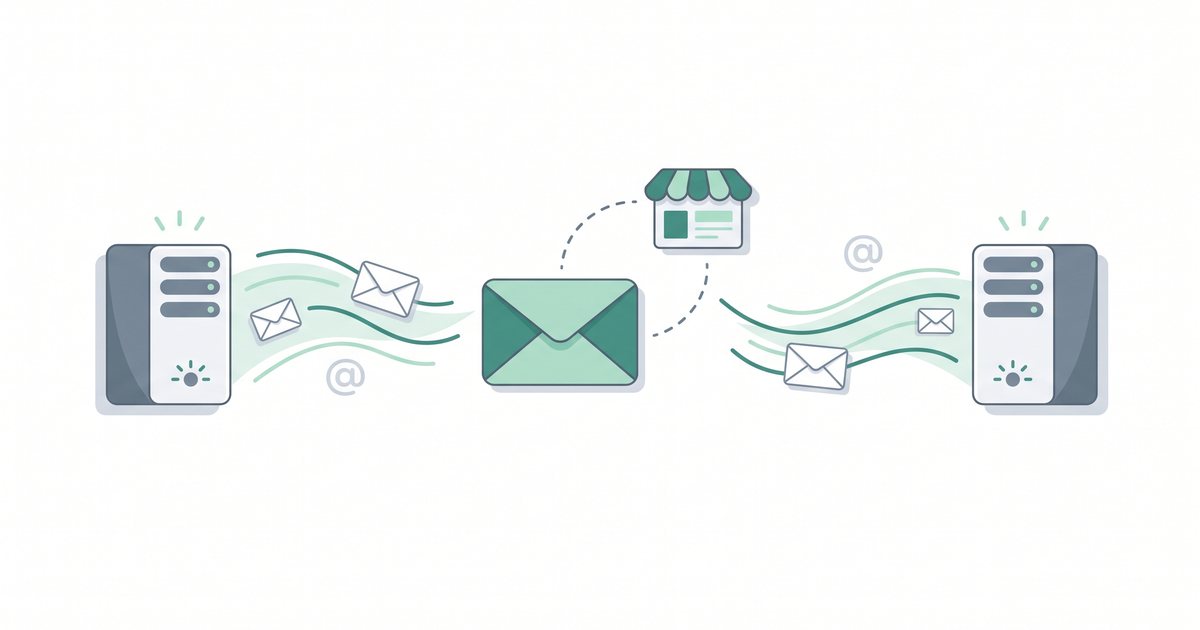
To transfer web hosting, choose a new host, back up your site's files and database from the old one, and recreate the site on the new host. Test it on a temporary URL, repoint your domain's DNS to the new host, confirm everything works, then cancel the old account.
Key takeaways
- Transferring hosting means moving your website's files and database to a new server. It is not the same as transferring your domain registration.
- You can move hosts and keep your domain exactly where it is registered. You only repoint the domain's DNS.
- Many hosts offer free migration and will move the site for you. This is usually the easiest and safest path.
- Always test the site on the new host before you switch DNS, and cancel the old host only after the new one is confirmed working.
- Steps differ by host and change over time, so confirm the current process in your account before you start.
Disclosure: Some links on this page are affiliate links. If you buy through them, we may earn a commission at no extra cost to you. We only recommend products we believe genuinely help with the problem this page covers. Our guidance stays the same whether or not a link earns anything.
Transferring hosting vs transferring a domain
This is the single point that trips people up, so it is worth getting clear before you touch anything. Three different things often get lumped together under the word "transfer," and they are not the same job.
Web hosting is the service that stores your website's files and database and serves them to visitors. Transferring hosting means moving those files and that database from your current host's server to a new host's server. That is what this guide covers.
A domain is your address, such as yoursite.com. It is managed by a domain registrar. Transferring a domain means moving that registration from one registrar to another, which is a separate account-level process with its own steps. If that is what you actually need, read how to transfer a domain instead.
DNS (the Domain Name System) is the phone book that tells the internet which server answers for your domain. Pointing DNS just updates that record so your address leads to a new server. You do this whenever your website moves, even if the domain itself never changes registrar. See how to point a domain for the exact records.
The key insight: you can move hosting while keeping your domain right where it is. Your domain stays at its current registrar; you simply repoint its DNS to the new host. Moving your website and moving your domain registration are independent choices, and you rarely need to do both at once.
The general process, step by step
Every hosting transfer follows the same shape, whatever host you are leaving. Work through these steps in order. The golden rule runs through all of them: keep the old site live and untouched until the new one is fully confirmed.
- Choose your new host. Pick a provider that fits your site's size, traffic, and platform. If you are weighing options, our guide to how to choose web hosting walks through the criteria that matter.
- Ask whether they offer free migration. Before you do anything by hand, check whether the new host will move the site for you. Many include a free migration and simply ask for login details to your old account. If they do, this is usually the easiest and lowest-risk path, and you can let their team handle most of the steps below.
- Back up your site from the old host. Download a full copy of your files (everything in the site's folder, often
public_html) and export your database (usually via phpMyAdmin as a .sql file). Keep both together in a safe place. Our website backups guide shows exactly how.
- Recreate the site on the new host. Upload your files to the new server, create a fresh database, and import your
.sql export into it. Update the site's config file with the new database name, user, and password. Running WordPress? Follow how to migrate WordPress for the platform-specific details.
- Test on a temporary URL. Most hosts give you a temporary address or let you edit your computer's
hosts file so only you see the new server. Click through pages, forms, images, and the login. Fix anything broken now, while the public still sees the old site.
- Point your domain's DNS to the new host. Once the new copy passes testing, update your domain's DNS records (or nameservers) to the new host's values. See how to point a domain. Changes can take a few hours to spread worldwide, a delay called propagation.
- Verify everything. After DNS updates, confirm the live site loads from the new host, the SSL certificate (the padlock that enables
https) is active, and any email tied to your domain still sends and receives.
- Cancel the old host, last. Only after the new host has served your live domain cleanly for a few days should you cancel or let the old plan lapse. Keep your final backup even then.
Tip: if you can, start the move a week or two before your old plan renews. That gives you breathing room to test and fix without paying twice or rushing the cutover.
Moving away from specific hosts
The general process is the same everywhere, but where you find your files and backups depends on the control panel your current host uses. Some use the familiar cPanel dashboard; others build their own custom panel. Here is where to look for each major host. Because providers update their dashboards and tools over time, treat these as a starting map and confirm the current steps inside your own account.
Leaving GoDaddy
GoDaddy's shared and cPanel hosting plans usually include cPanel, where you can use the File Manager or the built-in Backup tool to download your files and export your database. Some plans use GoDaddy's own account dashboard, so the exact menu names vary. The simplest route is often to hand your GoDaddy login to the new host and request their free migration.
Leaving SiteGround
SiteGround uses its own custom panel called Site Tools rather than cPanel. Inside Site Tools you will find a File Manager, a MySQL section for your database, and a Backups area for creating and downloading copies. Export both your files and database from there, or ask the new host to migrate for you using your SiteGround credentials.
Leaving HostGator
HostGator is cPanel-based, so the standard cPanel tools apply: File Manager for files, phpMyAdmin for the database, and the Backup section for full downloads. Because it is cPanel, most new hosts can migrate a HostGator site quickly, and a cPanel-to-cPanel transfer is one of the smoothest kinds.
Leaving Bluehost
Bluehost pairs a custom account dashboard with cPanel access underneath. Look for the Advanced or cPanel area to reach File Manager and phpMyAdmin, then download your files and export the database. For WordPress sites, a migration plugin or the new host's free migration service usually handles the move with fewer manual steps.
Leaving Namecheap
Namecheap shared hosting runs on cPanel, so you get File Manager, phpMyAdmin, and cPanel's Backup Wizard for a full export. Namecheap is also a domain registrar, so double-check whether you are moving only the hosting or the domain as well. Moving hosting alone means you just repoint DNS and leave the domain where it is.
Leaving IONOS
IONOS uses its own control panel, though many plans also offer cPanel or Plesk. Find your files through the panel's file manager or SFTP, and export your database from the database section (phpMyAdmin where available). As always, requesting the new host's free migration and supplying your IONOS login is usually the least fiddly option.
Leaving WP Engine
WP Engine is managed WordPress hosting with a custom User Portal rather than cPanel. It provides backup points you can generate and download, plus SFTP and phpMyAdmin-style database access from within the portal. Because it is WordPress-only, a WordPress migration plugin or the new host's WordPress migration service moves the site cleanly. Our WordPress migration guide covers the specifics.
In every case: if your new host offers free migration, that is almost always the easiest way to leave any of these providers. You give the new host access, and their team recreates the site for you. Confirm each host's current process, since dashboards and backup tools change.
After the switch: what to check
Getting the site to load on the new host is not quite the finish line. A few things live around your website and can quietly break during a move. Check these before you relax.
Update your email if it was tied to the old host. If you used mailboxes like you@yoursite.com hosted on the old provider, those inboxes do not travel with the website. Recreate them on the new host (or a dedicated email service) and update the domain's MX records, the DNS entries that route mail, so messages keep arriving.
Confirm SSL is active. Make sure the padlock shows and pages load over https on the new host. Most hosts issue a free certificate automatically, but it can take a short while after DNS points to them. If browsers warn about the certificate, give it an hour and check again.
Keep a backup. Hold on to the full backup you made from the old host, plus a fresh one from the new host once everything is stable. If a problem surfaces days later, that copy is your safety net.
Common mistakes to avoid
Warning: the most expensive mistake is canceling the old host before testing the new one. If you cancel first and the new copy has a problem, your site can go dark with no easy way back. Always keep the old account live until the new site is confirmed working on your real domain.
A few other slip-ups catch people out during a hosting transfer:
- Forgetting email accounts. Mailboxes hosted on the old provider stop working when you cancel it. Move them and update MX records first.
- Not repointing DNS. The site can be perfectly recreated on the new host, but visitors still see the old server until you update DNS. Copying files is only half the job.
- Assuming a domain transfer moves the website. Transferring your domain registration changes who manages the address. It does nothing to your files and database. The website only moves when you move the hosting.
- Skipping the test URL. Pushing live without testing means visitors find the broken pages before you do. Always preview on a temporary address first.
Frequently asked questions
How do I switch web hosts?
Choose a new host, back up your files and database from the old one, and recreate the site on the new server. Test it on a temporary URL, then repoint your domain's DNS to the new host. Once the live site, email, and SSL all check out, cancel the old host. Many hosts will do this migration for you for free.
Is transferring hosting the same as transferring my domain?
No. Transferring hosting moves your website's files and database to a new server. Transferring a domain moves your address's registration from one registrar to another. They are separate jobs, and you can move hosting while leaving your domain exactly where it is registered.
Will my site go down when I switch hosts?
It does not have to. If you build and test the site on the new host before repointing DNS, and keep the old site live during the change, visitors keep seeing a working site the whole time. DNS changes spread over a few hours, but both servers hold a copy during that window, so there is no gap.
Can my new host move the site for me?
Very often, yes. Many hosts offer free migration and only need access to your current account to move the files and database for you. This is usually the easiest and safest option, especially if you are not comfortable exporting databases by hand. Ask the new host before you start doing it manually.
What happens to my email when I switch hosts?
If your mailboxes were hosted on the old provider, they do not move with the website. Recreate the accounts on the new host or a dedicated email service, then update your domain's MX records so mail routes to the right place. Sort this out before canceling the old host so you do not lose incoming messages.
How long does a hosting transfer take?
The hands-on work is often an afternoon for a small site, or a bit longer for large or complex ones. The main wait is DNS propagation after you switch, which usually settles within a few hours and can occasionally take up to a day. Planning a week of overlap between hosts removes any time pressure.
Do I have to move my domain too?
No. Your domain can stay at its current registrar while your website moves to a new host. You only repoint the domain's DNS. Move the domain registration as well only if you specifically want everything under one roof.
Summary
Transferring web hosting is really one careful sequence: choose a new host, back up your files and database, recreate the site, test it privately, repoint DNS, verify the live site, and cancel the old host last. Keep the old site running until the new one is proven, and remember that moving hosting is separate from moving your domain. If your site runs on WordPress, the next step is our detailed walkthrough on how to migrate a website, which fits this transfer into the wider migration picture.
If the reason you are leaving is that your current host is slow or unreliable rather than a setting on your own site, the move is a good moment to pick a provider that removes the manual work. Choose a new host that offers free migration and let their team move the files and database for you, so you avoid exporting databases by hand and reduce the chance of a broken cutover. Hostinger is one provider that includes assisted migration on its plans, so you can compare it against your current host and decide whether it fits your situation. If valid at the time of purchase, new users may also be able to apply a coupon such as SPECIAL15 or SPECIAL10, subject to Hostinger's terms.
Compare Hostinger plans →
Affiliate disclosure: if you sign up through this link we may earn a commission, at no extra cost to you. How this works.
References
- Provider documentation for cPanel and custom control panels (GoDaddy, SiteGround Site Tools, HostGator, Bluehost, Namecheap, IONOS, WP Engine User Portal) — consulted for where files, databases, and backup tools live in each panel.
- cPanel and phpMyAdmin official documentation — file management and database export/import procedures.
- Bitrich777 internal guides: website backups, pointing a domain, and WordPress migration.